 First, Start MicroSoft Internet
 Explorer (version 3.xx)
by double-clicking the icon.
First, Start MicroSoft Internet
Explorer (version 3.xx)
by double-clicking the icon.
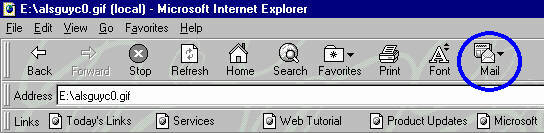
Next, select Mail. Then, Read Mail.
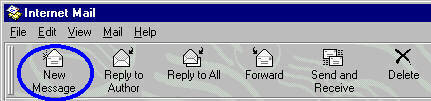
In the MicroSoft Internet Mail window select New Message.
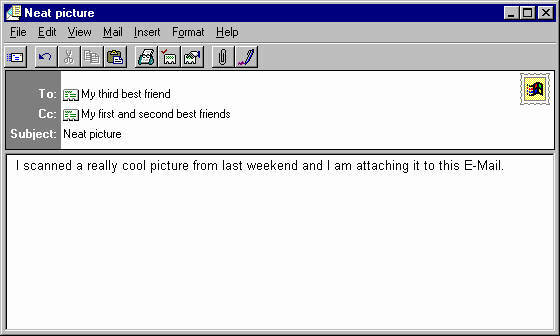
Complete the E-Mail address, subject and message.
Then to start an attachment either click on the  icon or select Insert and then File Attachment.
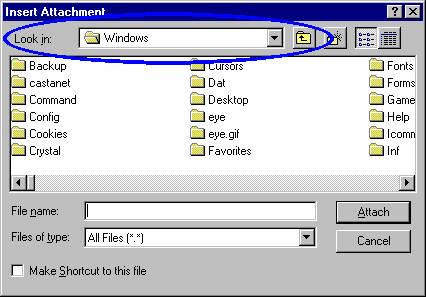
In the file window select the drive and folder(s) to reach the file you wish to send.
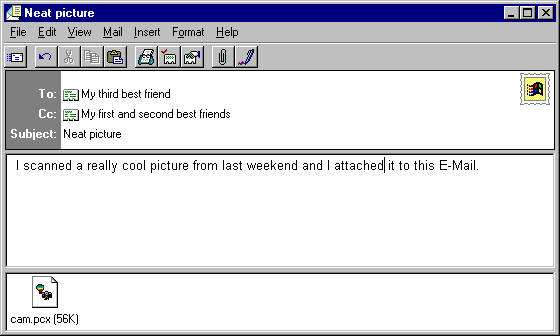
Once you select the file it should appear in a seperate box
attached to the bottom of your message as shown above.
One Note: this attachment (cam.pcx) has a "pcx" extension which means
it is a special type of graphic file.
Not everyone will have a program that will recognize the file you are
sending.
For graphics try to use .gif or .jpg (everyone has .bmp but these files
are 30 to 200 times larger
and take too long to download).
For text use notepad.txt or wordpad.doc or older versions of word.doc
and wordperfect.wpd
(not everyone has the latest versions and won't be able to open them
in their version).